How to play WaveRider
WaveRider turns a song into a road and lets you ride it. A run takes as long as the song, and it all comes down to one thing: be in the right lane when the music hits. Here is a whole run, start to finish.
1. Pick a song
On the home screen, Browse lists trending tracks from Audius: press play on one and you are in. Or switch to Upload and choose any audio file from your device, up to 20 MB. For an upload, WaveRider looks for synced lyrics to show along the bottom of the screen while you ride; pick a match, or play without them.
The song is analysed right there in your browser: its tempo, its bass, its quiet stretches and its drops become the shape of the road. It is never sent anywhere unless you later choose to publish your track.
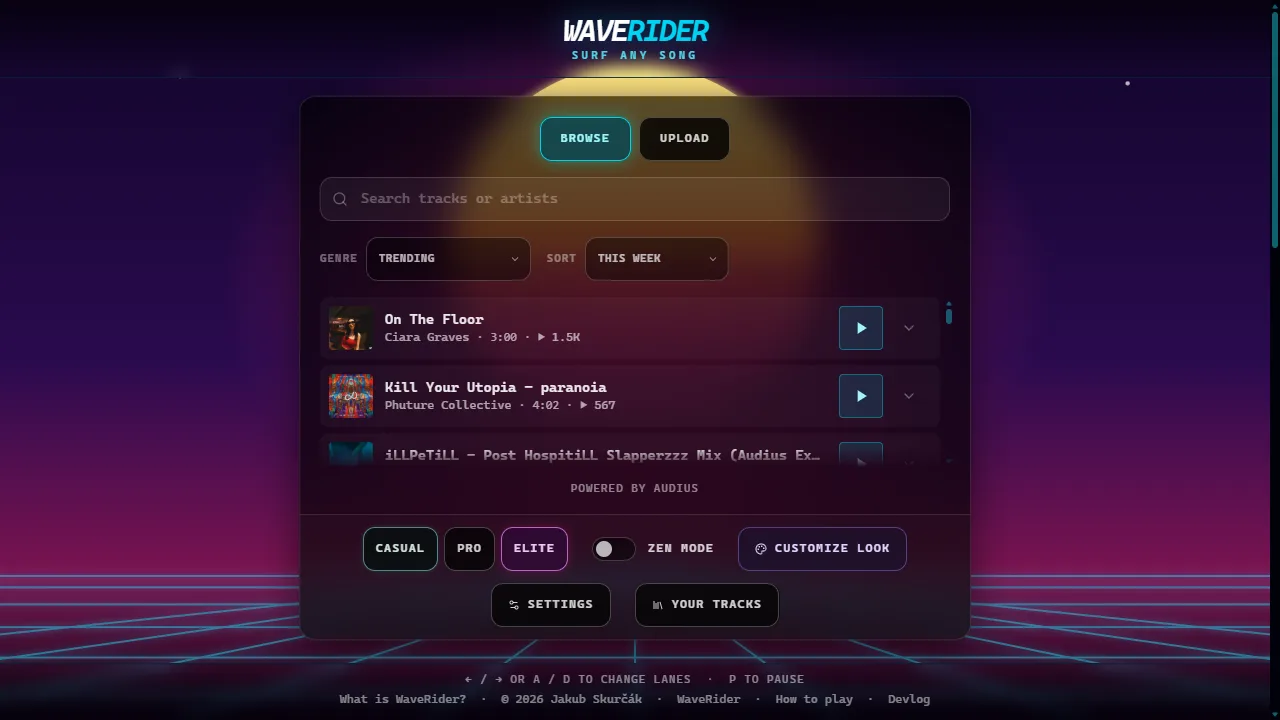
2. Choose a difficulty
There are three: Casual, Pro, Elite. They are the same road and the same song; a harder difficulty just puts more of the music's notes on it. Start on Casual, and move up once you are catching most of the orbs. Every song also gets harder as it goes: by the end, Casual rides some of Pro’s notes and Pro some of Elite’s.
Zen mode turns scoring off entirely. No orbs to miss, no combo to break: just the song and the road. It is the best way to see what a song looks like.
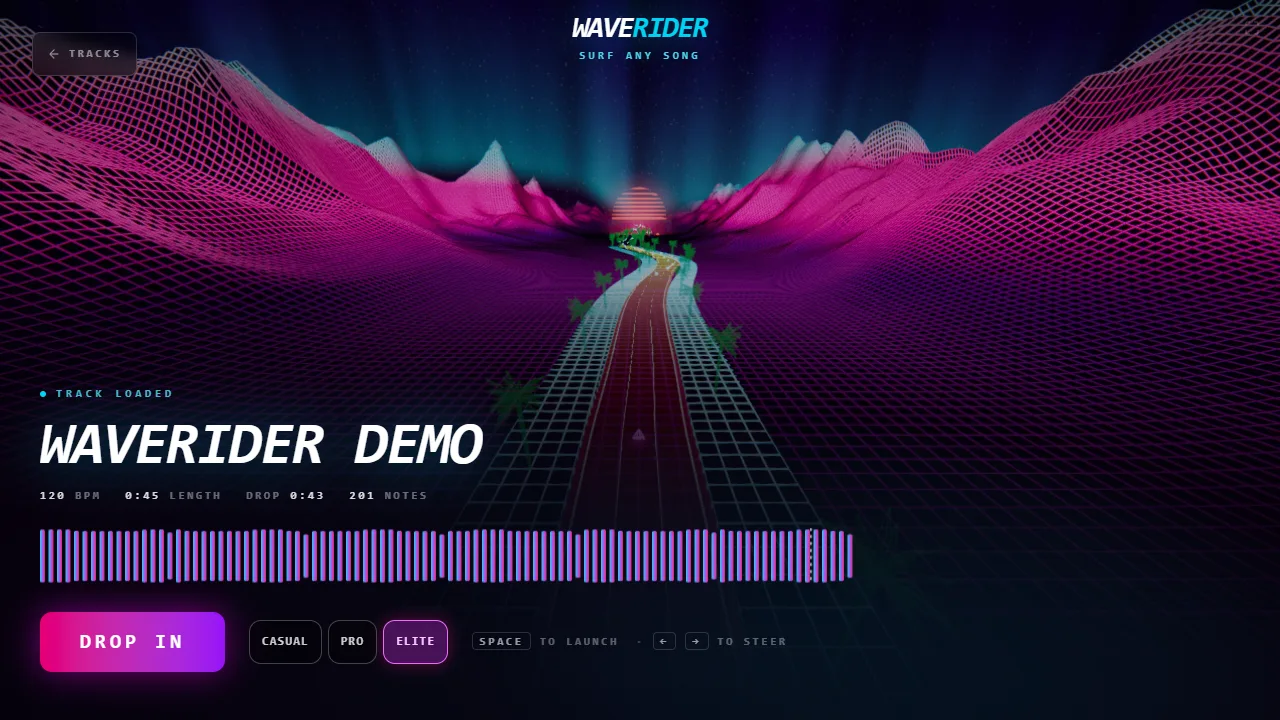
3. Drop in
The start screen shows the song’s tempo, length and how many notes the road holds. Press Drop in: the camera tips over the edge and falls toward the road over a 3-2-1 countdown, and touches down exactly as the music starts.
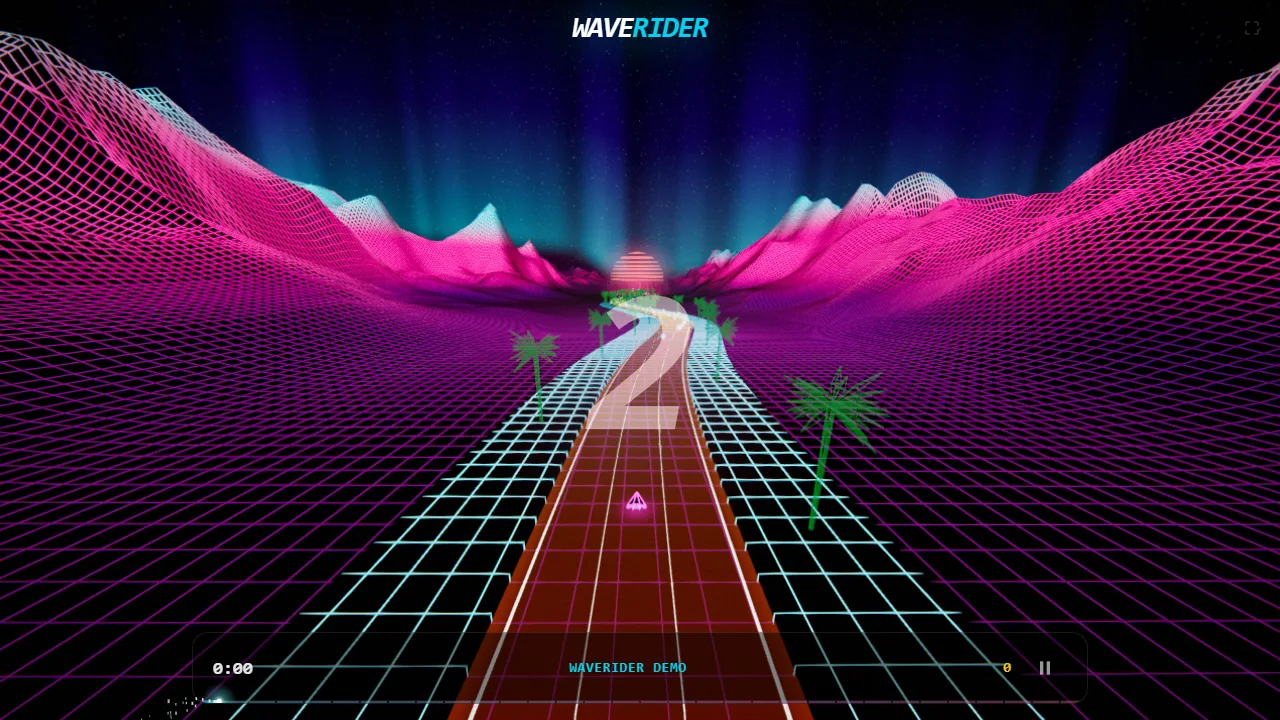
4. Steer
The road has three lanes, and you change lanes one step at a time.
- Keyboard: ← and →, or A and D.
- Touch: tap the left or right half of the screen. On a phone, hold it sideways: WaveRider plays in landscape.
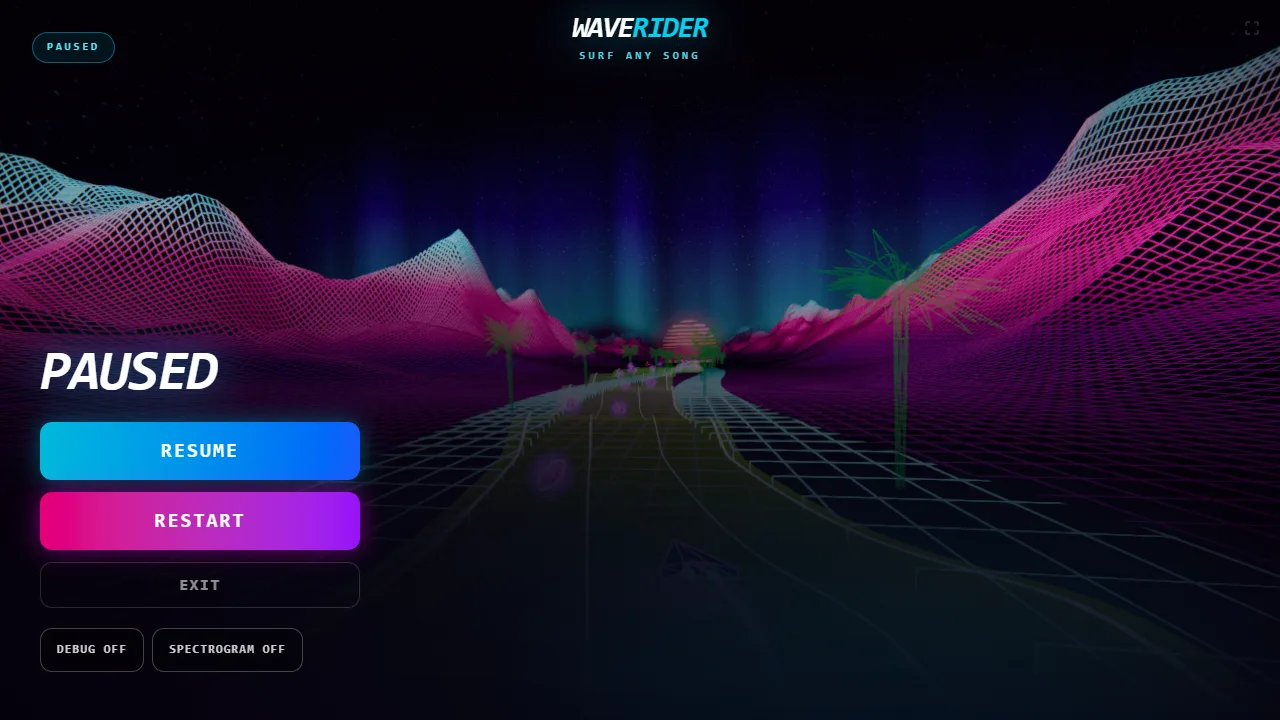
- Pause: P, or the pause button in the bar at the bottom.
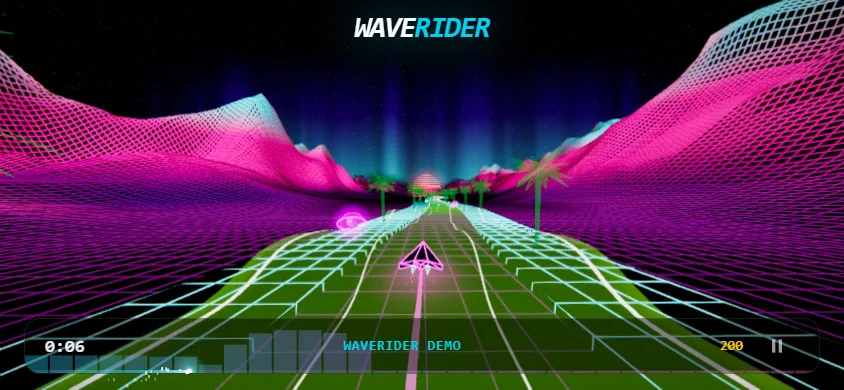
5. Orbs, holds and hazards
Three things come down the road at you, and each lands on the music.
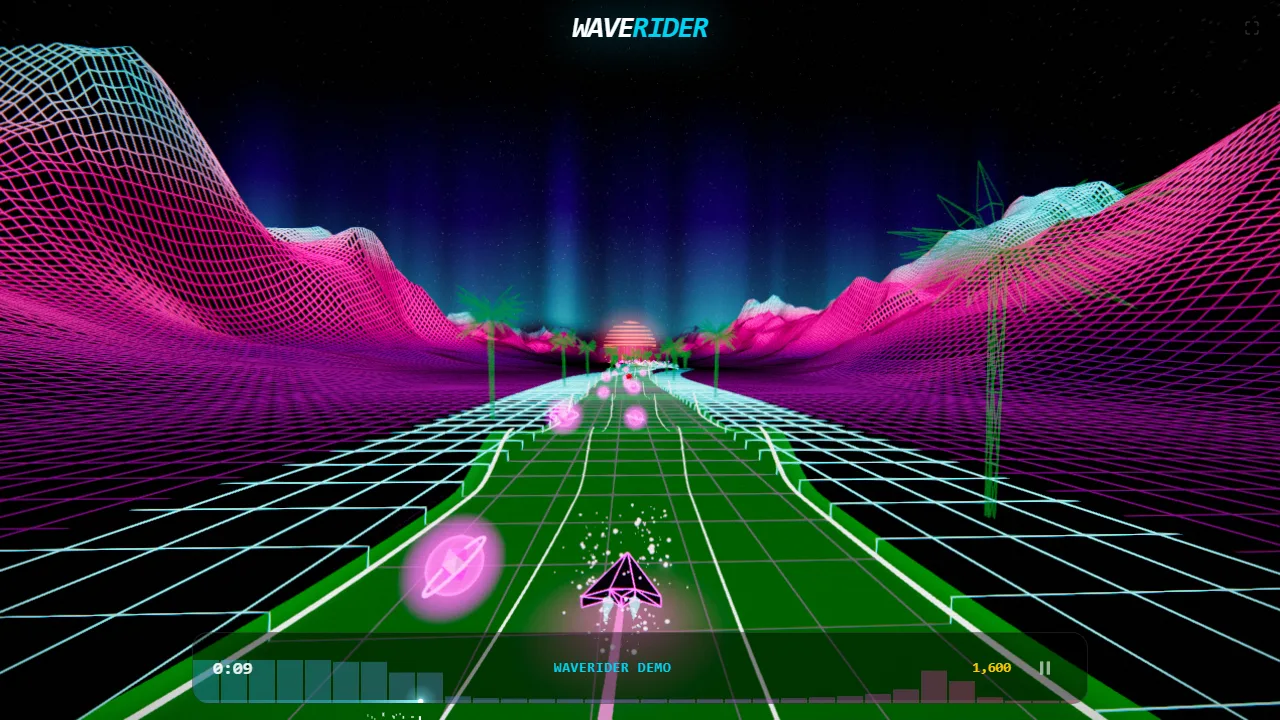
- Orbs sit on the beat. Be in an orb’s lane as it reaches you to catch it. A missed orb turns grey as it passes you.
- Holds are glowing beams that follow a long note. Catch the orb at the head of the beam, then stay in its lane to the end; the ship burns brighter the longer you ride it. Leave the lane early and the beam goes grey and dashed: the rest of that hold is gone. When the note glides, the beam bends into the next lane: follow it across.
- Hazards are the red spiked shapes. Be in a different lane when one passes.
6. Scoring
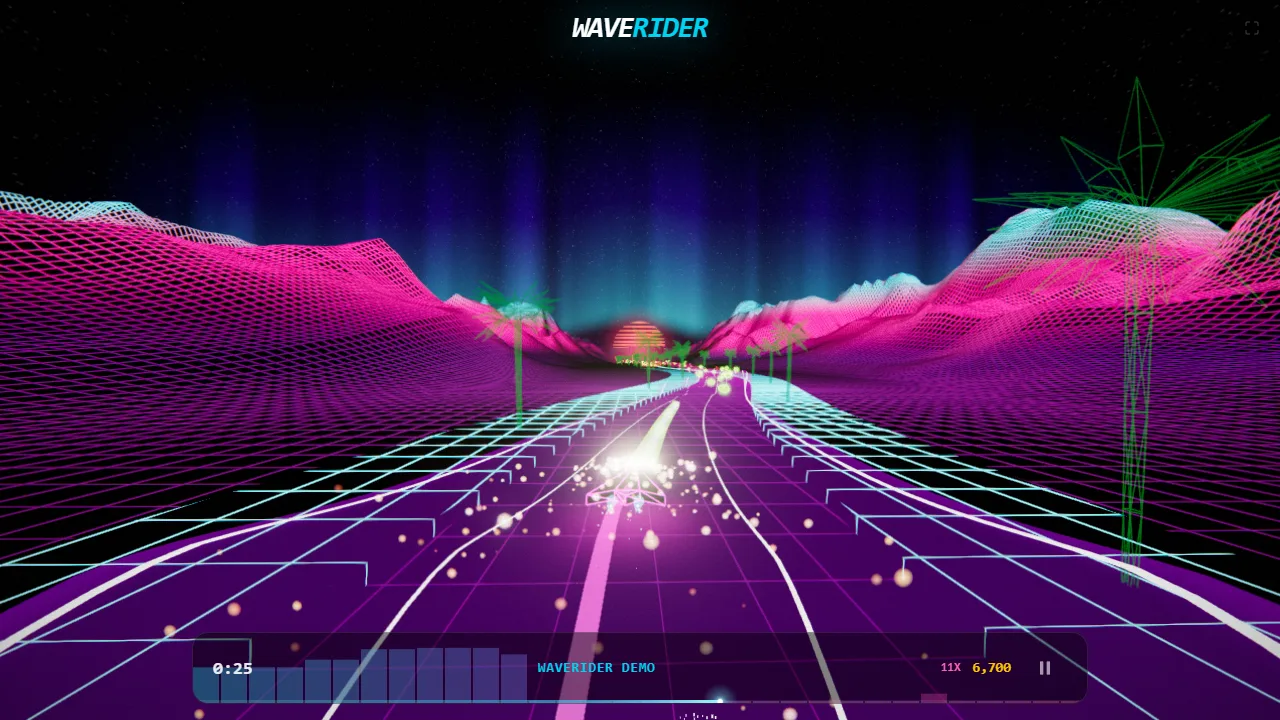
- Every orb you catch is worth 100 points × your multiplier.
- The multiplier starts at ×1 and goes up by one for every 10 orbs in a row: ×2 at a 10 combo, ×3 at 20, and so on. A neon trail grows behind the ship as it climbs.
- Missing an orb or hitting a hazard breaks the combo and drops the multiplier back to ×1. On Elite a hazard also costs five orbs’ worth of points at the multiplier you held, though the score never drops below zero.
The biggest scores come from long, unbroken streaks, so on a hard section it is often worth letting one orb go to stay out of a hazard’s lane.
7. After the run
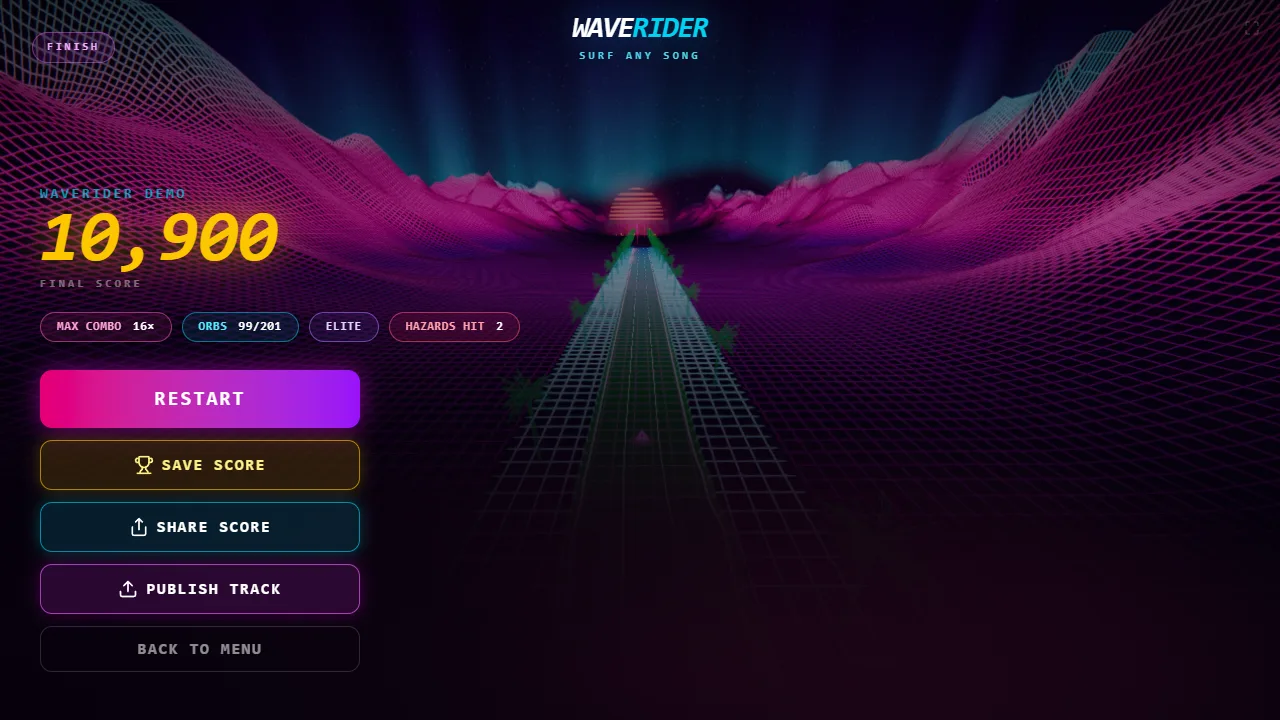
When the song ends you get your score, how many orbs you caught, your best combo and how many hazards you hit. From there you can:
- Save score to put your name on that song’s leaderboard.
- Share score to send a link to your run.
- Publish track to share the song with your look applied, so friends can ride the same road and try to beat you.
- Restart to have another go at the same song.
Make it yours
Customize look on the home screen changes the colours, the scenery and the sun, with a live preview, and the look goes with a track when you publish it. Settings holds the graphics quality, a frame-rate cap for smoother play on slower machines, and Record run, which saves a video of your run to download from the results screen.
Tips
- Watch the road, not the ship: orbs are easiest to read a second or two ahead.
- Songs with a strong beat and bass make the clearest roads to learn on.
- Headphones help: every orb is on something you can hear.
- If the game stutters, lower the graphics quality in Settings, or cap the frame rate at 60.